

How to Create an Infographic for Your Blog: Layout, Tools & Best Practices
Infographics are still one of the most shared content formats on the web in 2026. They turn dense data into something readable, memorable, and link-worthy. But if you have ever tried to build one from scratch, you know the truth: a bad infographic is worse than no infographic at all.
This guide walks you through how to create an infographic for your blog, even if you are not a designer. We will cover planning, layout principles, visual hierarchy, and the best tools available right now.
What Makes a Good Infographic?
Before opening any tool, understand what separates a high-performing infographic from visual noise:
- One clear message a reader can grasp in under 10 seconds
- Data that supports a story, not random statistics
- A logical visual flow from top to bottom
- Consistent style (fonts, colors, icon weight)
- Source attribution for credibility
Step 1: Plan Before You Design
Most failed infographics are failures of planning, not design. Start by answering three questions:
- Who is this for? A B2B audience tolerates more data density than a lifestyle blog reader.
- What action do you want? Share, embed, click through, subscribe?
- What is the single takeaway? If you cannot summarize it in one sentence, narrow your topic.
Once that is locked in, gather your data. Use primary sources whenever possible: studies, government datasets, your own analytics, surveys. Build a simple outline before touching any design tool.
Step 2: Choose the Right Infographic Type
The format should match the message. Here is a quick reference:
| Type | Best For | Example Use |
|---|---|---|
| Statistical | Survey results, benchmarks | “State of marketing 2026” |
| Timeline | History, evolution, roadmaps | Brand origin story |
| Process / Flowchart | Step-by-step explanations | Customer onboarding flow |
| Comparison | Two or more options side by side | Product A vs Product B |
| Geographic | Location-based data | Regional adoption maps |
| Hierarchical | Rankings, pyramids | Maslow-style frameworks |
Step 3: Sketch the Layout
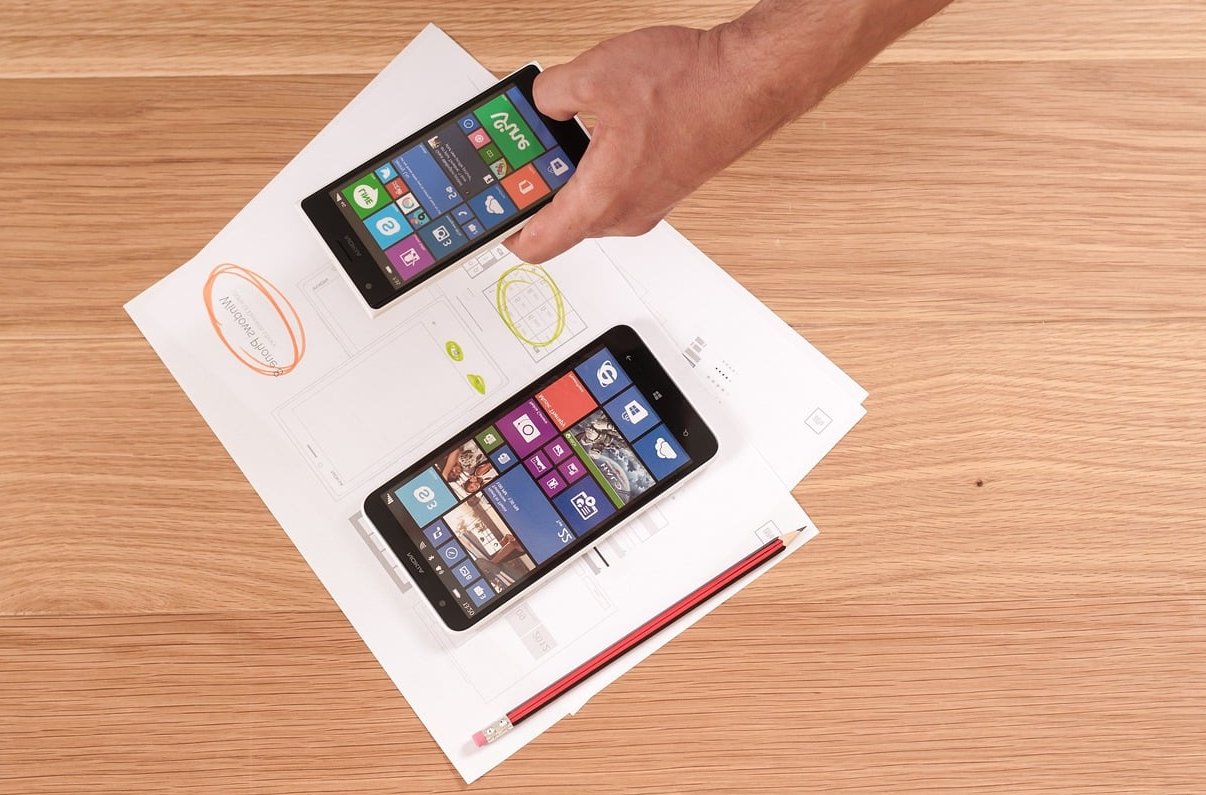
Before opening any design app, draw a rough wireframe on paper or in a basic shape tool. This saves hours of redesign.
The Standard Vertical Layout
Most blog infographics use a vertical format around 800 px wide by 2000 to 4000 px tall. This works well for embedding and Pinterest sharing.
A reliable structure:
- Header: bold title, short subhead, optional hero icon
- Introduction: one or two sentences setting the stakes
- 3 to 6 content blocks: each with a heading, visual, and short caption
- Conclusion or key takeaway
- Footer: sources, logo, URL

Step 4: Master Visual Hierarchy
Visual hierarchy is what tells the reader where to look first, second, and third. Without it, even beautiful infographics feel chaotic.
The Three Levers of Hierarchy
- Size: the biggest element is read first. Make your key number or headline the largest.
- Contrast: bright colors on a neutral background draw the eye. Reserve your accent color for what matters most.
- Position: in left-to-right reading cultures, the top-left and center attract attention first.
Typography Rules
- Use a maximum of two fonts: one for headings, one for body
- Keep body text at 14 px or larger for readability
- Use weight (bold, regular, light) to create rhythm
Color Strategy
- Pick one dominant color, one accent, and two neutrals
- Check contrast with a free tool like WebAIM Contrast Checker
- Stay consistent with your brand palette so the infographic looks native to your blog
Step 5: Choose the Right Tool
You do not need Adobe Illustrator. Here is an honest comparison of the most reliable tools in 2026.
Free Tools
| Tool | Strength | Limitation |
|---|---|---|
| Canva | Huge template library, drag and drop | Premium assets locked behind paywall |
| Microsoft PowerPoint | Already installed, decent shape tools | Limited icons and modern templates |
| Google Slides | Free, collaborative | Basic design controls |
| Figma (free tier) | Precision, plugins, community files | Steeper learning curve |
Paid Tools
| Tool | Best For |
|---|---|
| Infogram | Interactive data infographics and live charts |
| Visme | Brand kits, animations, team workflows |
| Adobe Express | Polished assets, AI-assisted generation |
| Piktochart | Report-style infographics |
Our recommendation for bloggers in 2026: start with Canva or Adobe Express. If you need interactive or embeddable charts, add Infogram.
Step 6: Design, Review, Refine
Once your draft is in place, run this checklist before publishing:
- Can someone understand the main point in 10 seconds?
- Is every chart labeled with units and a source?
- Are colors accessible for color-blind readers?
- Did you compress the file (under 1 MB if possible) for fast loading?
- Does the infographic include your blog URL or logo in the footer?

Step 7: Publish and Promote
An infographic that lives only on your blog is wasted potential. To get the most out of it:
- Add descriptive alt text with your target keyword for SEO and accessibility
- Provide an embed code so other sites can share it with a backlink to you
- Repost vertical sections on Pinterest, LinkedIn, and Instagram
- Write a companion blog post that expands on the data (Google rewards this)
- Pitch the infographic to industry newsletters and roundup posts
Common Mistakes to Avoid
- Too much data: if you have more than 6 sections, split into two infographics
- Decorative charts: a pie chart with two slices is just a bar. Pick the simplest chart that works.
- Inconsistent icons: never mix flat, outlined, and 3D icons in the same graphic
- No source citations: kills credibility instantly
- Walls of text: if a paragraph fits, it does not belong in an infographic
FAQ
Can AI tools create an infographic for me?
In 2026, AI assistants like ChatGPT, Adobe Firefly, and Canva Magic Design can generate first drafts and suggest layouts. However, they still struggle with accurate data visualization and visual hierarchy. Use AI for ideation and rough drafts, then refine manually.
What is the ideal size for a blog infographic?
The most common size is 800 px wide by 2000 to 4000 px tall. This fits most blog content widths and is optimal for Pinterest sharing.
How long does it take to create an infographic?
With a template, expect 2 to 4 hours. From scratch with custom illustrations, plan on 8 to 20 hours depending on complexity.
Do infographics still work for SEO in 2026?
Yes. Infographics generate backlinks, increase dwell time, and earn social shares. Just make sure the surrounding blog post contains the text content too, since Google cannot read text inside images.
What is the best free infographic maker?
For most non-designers, Canva offers the best balance of templates, ease of use, and free assets. Adobe Express is a strong alternative if you want a more polished look.
Final Thoughts
Creating an infographic is less about design talent and more about clarity of thought. Plan the message, choose the right layout, respect visual hierarchy, and use a tool that fits your skill level. Do that consistently and your blog will produce infographics that actually get shared, embedded, and linked to.